WhatsApp 24-Hour Messaging Window Explained (And How to Work Inside It)

Author
Hamza Parvez | Founder
Published on
November 22, 2026
8 min read
The WhatsApp 24-hour window is the rule that separates a normal reply from a business-initiated message. When a customer messages your official number, you may send free-form replies — including bot replies, buttons, and useful follow-ups — for a limited customer-care period that starts with that inbound message and typically resets when they write again. Once the window closes, you cannot simply continue the chat as if it were iMessage. You send a Meta-approved template, or you wait until the customer speaks.
Teams get this wrong in two opposite ways. They either go silent when a cart reminder or an appointment nudge would have been a valid template, or they try to smuggle marketing copy through a session that has already expired. This article explains the window as an operating constraint and how WhatsApp Automater helps you design around it. Message categories, fees, and edge cases are defined by Meta and can change, including charges that may apply even inside a service window in some markets — check the current rate card and policy docs when you budget.
What opens the window, and what does not
The window opens when the user messages your business. A button tap or a reply to a template counts as user-initiated in the usual case and starts or refreshes the care period. Your outbound template, by itself, does not give you twenty-four hours of free-form chatter if the user never answers.
That last point is where a lot of campaign designs fail. You send a broadcast, nobody replies, and the software still tries to send a second, untemplated “just checking in.” That second message should never leave the platform. Good WhatsApp automation software blocks it and asks for a template instead.
What you should do while the window is open
This is the time to be useful, not to empty the marketing calendar.
- Answer the question with facts from your catalog or knowledge base.
- Finish the task: book the slot, confirm the size, locate the order.
- Offer one relevant next step, not five.
- If you need information, ask one question at a time or use a short Flow.
- Leave a clear path to a human. Meta’s rules expect escalation paths for automated replies in this window; a “talk to a person” control is the simple version.
Speed helps here because the customer is already in the thread. A slow first reply wastes the same window you will later wish you still had. See why first response time matters.
What you should do when the window is closed
Use templates that match the job, in the right category:
- Utility for the updates people expect — shipment, appointment, ticket status — written as an update, not a promotion.
- Authentication for codes and login challenges.
- Marketing for offers, re-engagement, and content that is reasonably promotional, and only to people who opted in.
Category is not a costume you put on a sales pitch. Mis-categorised templates get rejected or, worse, create quality problems after they are approved. Our template approval guide and utility vs marketing notification strategy are the practical companions to this section.
If the customer never opted in, you do not have a closed-window problem. You have a list problem. Do not attempt to solve it with a template.
Designing journeys around the clock
Think in two layers. Inside the window, a bot or agent can complete the work. Across gaps, a small set of templates should reopen the conversation only when there is a real reason: a reminder the customer asked for, a status change, a booked callback, or a clearly opted-in offer.
Examples:
- A lead starts a qualification quiz and drops halfway. Inside the window, a short nudge is a session message. After close, use a template that honestly says you can continue the questions, not a coupon dump.
- A cart is abandoned. The first reminder might still be inside a browsing session if they wrote to you; later reminders must be templates and should help, not nag. See cart recovery sequences.
- An appointment is booked. The 24-hour and 2-hour reminders are classic utility templates with a confirm or reschedule action.
WhatsApp Automater’s flows are built with this clock in mind: free-form AI and menus while the session is open, template nodes when it is not, and an inbox when a human should take the open window rather than burn it on a looped bot.
Fees and the window are related, but not identical
Historically, many service replies inside the window were cheaper or uncharged compared with business-initiated templates. Meta has been changing how service, utility, and marketing messages are billed by market. Do not assume “inside 24 hours means free.” Assume “inside 24 hours means free-form is allowed,” then look at the current price list. Our pricing breakdown explains the stacking logic without pretending the numbers never move.
A simple decision table for your flows
If the customer wrote in the last 24 hours and you are answering their question, send a session message. If they wrote in the last 24 hours and you want to add an unrelated offer, think twice — the window is not a licence to change the subject into a catalogue. If they have been silent for more than 24 hours and you have a genuine update or a booked reminder, send the matching template. If you only want to “check in,” do not send. WhatsApp Automater should be configured to enforce that last line automatically.
Put these playbooks into production
Start with WhatsApp Automater's free tier, connect WhatsApp, and iterate on real customer conversations — with analytics built in. Get started free or see plans on whatsappautomater.com.
FAQ’s
Related Posts
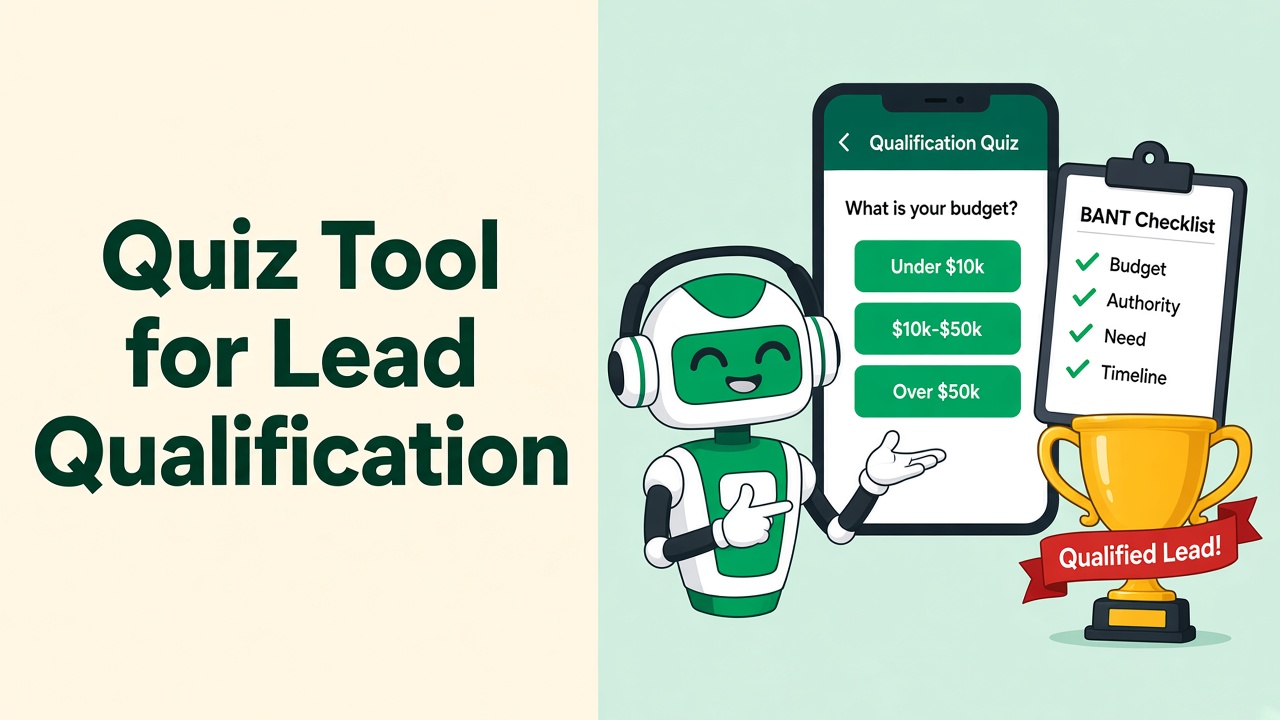
Quiz Tool for Lead Qualification on WhatsApp: Automate BANT Without Forms
The best quiz tool for lead qualification in 2026 is the one your lead will actually finish — which means it has to live in WhatsApp.
Free Typeform Alternative for Scoring Leads on WhatsApp (2026)
Typeform is great until the lead never comes back from the form. Score buyers inside WhatsApp instead — free to start with WhatsApp Automater.
WhatsApp Automater vs WappBiz: Affordable WhatsApp Automation Compared
WappBiz and WhatsApp Automater both target SMBs. The difference is AI grounded in your catalog versus no-code broadcasts — and a real free tier.
WhatsApp Automater vs AiSensy: Best WhatsApp Tool for Ecommerce in 2026
AiSensy is built for ecommerce broadcasts. WhatsApp Automater is built for catalog-accurate conversations that recover carts and answer product questions.
WhatsApp Automater vs Twilio: Native Automation vs a Developer API
Twilio gives you pipes. WhatsApp Automater gives you the bot, inbox, catalog AI, and analytics on those pipes — including Twilio itself.
WhatsApp Automater vs Wati: Which WhatsApp API Platform Should You Choose?
Wati is a strong shared inbox. WhatsApp Automater is an AI-first WhatsApp automation layer with a free plan. Here is how to choose — and why most SMBs should start with Automater.